
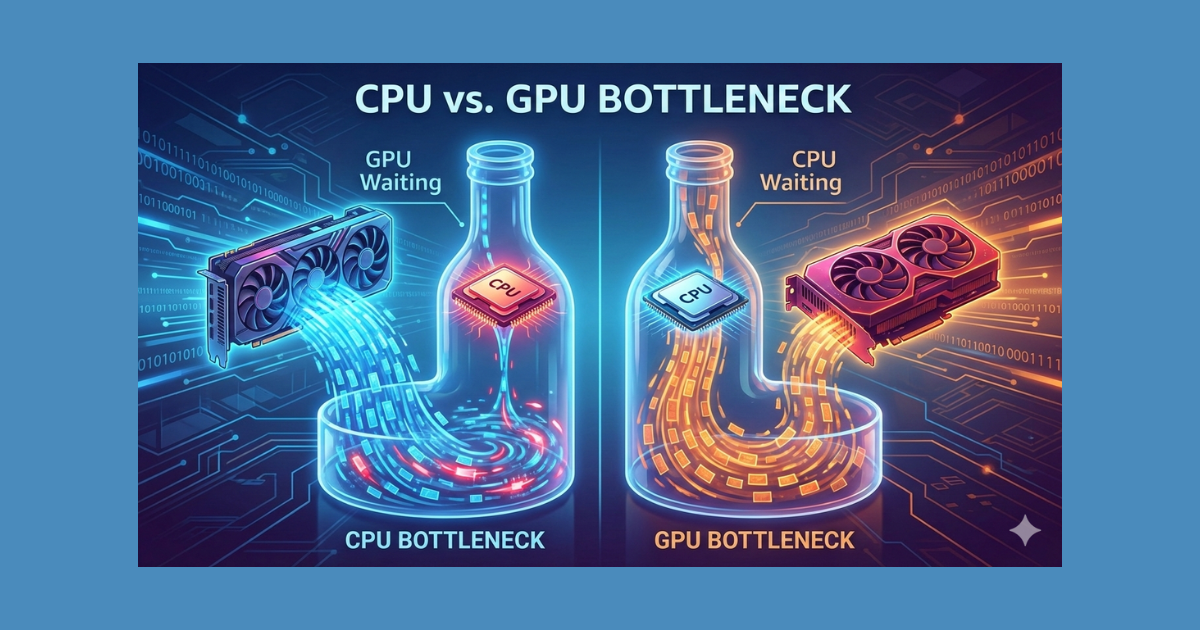
If your games are stuttering, running below expectations, or showing uneven frame pacing, the first question to answer is simple:
Is your CPU or GPU holding you back?
Most players guess incorrectly. In my own testing across multiple builds (from older Ryzen systems to modern RTX cards), I’ve found that the majority of “bottleneck” complaints come from misreading performance data, not weak hardware.
This guide provides repeatable tests, clear thresholds, and real-world examples so you can identify bottlenecks quickly and confidently without relying on inaccurate bottleneck calculators.
Note: This guide uses only standard Windows and manufacturer supported troubleshooting steps. No unsafe tweaks, no registry edits, and no risky changes.
Quick Answer: How to Tell If You’re CPU or GPU Bottlenecked
- If GPU usage stays at 95–100%, you are GPU-limited (this is normal and usually ideal).
- If GPU usage stays below ~90% while one or more CPU cores hit 90–100%, you are CPU-limited.
- Lower your resolution:
- FPS increases → GPU bottleneck
- FPS stays the same → CPU bottleneck
Everything below explains why this works and how to confirm it reliably.
1. What a Bottleneck Actually Is (Correct Definition)
A bottleneck occurs when one component (CPU or GPU) is consistently maxed out and prevents the other from operating at full potential.
Simple rule:
- GPU Bottleneck → GPU usage at 95–100%
- CPU Bottleneck → GPU usage drops while one or more CPU cores hit 90–100%
There is no scenario where both are “the problem” at the same time. One component always limits the other first.
2. Tools You Need (Free + Lightweight)
You only need two tools.
A. MSI Afterburner (with RivaTuner Statistics Server)
- Displays GPU usage %, CPU per-core usage, FPS, and frametimes
- Industry standard for real-time diagnostics
- Far more accurate than Task Manager
Pro-Tip: When installing MSI Afterburner, ensure you check the box for ‘RivaTuner Statistics Server.’ Without it, you won’t get the on-screen overlay needed for these tests.
B. CapFrameX (Optional but Highly Recommended)
- Analyzes 1% lows, 0.1% lows, frametimes, and frame pacing
- Especially useful for diagnosing CPU bottlenecks and micro-stutter
C. Intel PresentMon (Beta)
If you want the most cutting-edge data, use Intel’s PresentMon. It introduces the “CPU Busy” metric. Unlike “usage,” this shows you exactly how many milliseconds the CPU is “thinking” versus how many milliseconds the GPU is “drawing.” If the CPU Busy time is higher than the GPU time, you are CPU limited, period.
Stop Using Bottleneck Calculators Most online calculators provide a single “bottleneck percentage” (e.g., 15.4%). In reality, bottlenecks change based on the game, the resolution, and even which direction your character is facing in an open world. A static percentage is mathematically impossible and often leads users to buy hardware they don’t need.
Real-time telemetry is the only source of truth.
3. The Core Test: How to Identify CPU vs GPU Limitation
Follow this exact process for consistent results.
Step 1 Enable Your Overlay
In MSI Afterburner, enable:
- GPU Usage %
- GPU Clock
- CPU Usage (per core)
- CPU Clock
- RAM usage
- VRAM usage
- Frametime graph
- FPS
Step 2 Load a Stressful, Repeatable Scenario
Avoid menus and cutscenes. Test in:
- Built-in benchmarks (ideal)
- Crowded cities or hubs
- Combat scenes with AI and physics
- Large open-world areas
Play for 2–3 minutes minimum.
4. How to Read the Results (Clear Thresholds)
A. You Have a GPU Bottleneck If:
1. GPU Usage = 95–100%
The GPU is working at full capacity. This is expected behavior.
2. CPU Usage Is Lower (30–70%)
Modern engines rarely load all cores equally. Low overall CPU usage does not indicate a CPU issue it indicates the GPU is the limit.
3. FPS Changes With Resolution
- 1080p → 1440p = same FPS → CPU bottleneck
- 1080p → 1440p = lower FPS → GPU bottleneck
GPU-bound systems scale with resolution. CPU-bound systems do not.
4. Frametime Graph Is Stable (Even if High)
- Stable but higher frametimes → GPU-bound
- Low but spiky frametimes → CPU-bound
GPU Bottleneck Example (Real-World)
RTX 3060 + Ryzen 5600 → Cyberpunk 2077 (Ultra)
- GPU Usage: 98%
- CPU Core Highs: ~60%
- FPS: ~75
Result: Correctly GPU-limited and running optimally
If your FPS is capped at or near your monitor’s refresh rate (e.g., 144Hz), you may not see full GPU utilization even when GPU-limited.
Note: If your GPU usage is high but your Frametime Graph shows massive, jagged spikes every few seconds, you may be exceeding your VRAM (Video Memory). This is a memory bottleneck, not a core speed bottleneck.
B. You Have a CPU Bottleneck If:
1. GPU Usage Is Low (30–80%) in Demanding Scenes
This is the strongest indicator. The GPU is waiting for the CPU.
2. One or More CPU Cores Hit 90–100%
Games rely on a few heavy threads, not equal core usage.
3. Lowering Resolution Does NOT Increase FPS
- 1080p → 720p → no meaningful FPS gain = CPU bottleneck
4. Stutters Correlate With Simulation Load
CPU-heavy tasks include:
- Dense NPC cities
- AI-heavy combat
- Physics calculations
- Strategy/RTS gameplay
- Open-world streaming
5. Multiplayer Performs Worse Than Single-Player
Network updates and entity tracking expose CPU limits quickly.
CPU Bottleneck Example
RTX 4070 + Ryzen 2600 → Fortnite
- GPU Usage: 55–60%
- One CPU Core: 97–100%
- Lower settings: no FPS gain
Result: CPU bottleneck
5. Special Case: Mixed or Situational Bottlenecks
Bottlenecks can change dynamically.
By Location:
- Indoors → GPU-bound
- Dense cities → CPU-bound
- Large battles → CPU-bound
- Ray tracing → GPU-bound
By Game Type:
- Esports → CPU-bound
- AAA cinematic → GPU-bound
- RTS/Simulation → almost always CPU-bound
- Survival crafting → heavy CPU load
6. Quick, Reliable Tests Anyone Can Run
TEST 1 Resolution Drop Test (Most Reliable)
- Run the game at your normal resolution
- Drop to 720p with the same settings
- Compare FPS
- FPS jumps → GPU bottleneck
- FPS unchanged → CPU bottleneck
- FPS drops → driver, limiter, or scaling issue
TEST 2 Usage Correlation Test
| GPU Usage | CPU Core Usage | Conclusion |
| 95–100% | No core pegged | GPU bottleneck |
| 50–80% | 1–2 cores at 90–100% | CPU bottleneck |
| 80–95% | Fluctuating | Mixed workload |
| 0–30% | Low | Driver / power / thermal issue |
TEST 3 Frametime Identity Test
- Smooth but high frametimes → GPU-bound
- Spiky frametimes → CPU-bound
- Large spikes during new areas → shader compilation, not a bottleneck
Early-game stutter in modern DX12/Vulkan titles is often shader compilation and resolves over time.
TEST 4 CPU Clock Behavior Test
If CPU clocks drop sharply:
- Thermal throttling
- Laptop power limits
- Insufficient cooling
These issues often masquerade as CPU bottlenecks.
TEST 5 The “Frame Gen” Latency Test
Turn on DLSS/FSR Frame Generation. Does the FPS number go up, but the game still feels “heavy” or “floaty”?
- Result: This confirms a CPU bottleneck. Frame generation adds visual smoothness but cannot fix the underlying “input lag” caused by a slow CPU.
7. Common Misdiagnoses (Avoid These)
- Low CPU usage – CPU is fine
- 70% GPU usage – GPU is broken
- Task Manager hides core bottlenecks
- Thermal throttling looks exactly like CPU limitation
8. How to Fix a CPU Bottleneck (Highest Impact First)
- Enable XMP/EXPO (often doubles RAM speed)
- Upgrade to 16–32GB RAM
- Improve CPU cooling
- Set Windows Power Mode to Best Performance
- Close background apps
- Lower simulation-heavy settings:
- Draw distance
- Shadows
- Crowd density
- Foliage
- Upgrade CPU if it’s 6+ years old
9. How to Fix a GPU Bottleneck
GPU bottlenecks are normal, but you can reduce load:
- Lower resolution
- Reduce ray tracing
- Adjust AA, shadows, AO
- Set GPU to Maximum Performance
- Improve cooling
- Upgrade GPU if below recommended specs
10. When to Upgrade CPU vs GPU (Clear Rules)
Upgrade GPU if:
- GPU usage is always 95–100%
- FPS scales with resolution
- CPU is modern but GPU is old
Upgrade CPU if:
- GPU usage stays below 80%
- Resolution changes don’t affect FPS
- One core hits 100%
- You play CPU-heavy games
11. Quick Reference Cheat Sheet
| Symptom | CPU Bottleneck | GPU Bottleneck |
| GPU Usage | 30–80% | 95–100% |
| CPU Core Usage | 1–2 cores maxed | Moderate |
| Resolution Change | No FPS gain | Large FPS gain |
| Stutter Type | Spiky | Stable but slow |
| Best Fix | RAM / cooling / CPU | Lower GPU load |
Frequently Asked Questions
Is a 10% bottleneck bad?
No. Bottleneck percentages are not real metrics. What matters is whether performance is smooth for your games and settings.
Can RAM cause a CPU bottleneck?
Yes. Slow or insufficient RAM can limit CPU performance and cause stutter.
Why is GPU usage low but FPS also low?
This usually indicates a CPU bottleneck, thermal throttling, or background processes limiting performance.
Does VRAM affect bottlenecks?
Yes. When VRAM is maxed, texture swapping causes stutter that mimics CPU limits.
Final Summary
You can diagnose performance issues accurately by measuring:
- GPU usage
- CPU per-core usage
- Frametime behavior
- Resolution scaling
Once you identify the true bottleneck, optimization becomes logical and upgrades become intentional, not guesswork.