
While the tech world keeps pushing Windows 11, millions of gamers in 2026 still rely on Windows 10 for its stability, lower overhead, and familiarity. The problem? As the OS ages, background telemetry, update services, and inefficient power behavior create hidden performance bottlenecks that lead to lag, freezing, and CPU overheating.
If your FPS counter looks great but your gameplay feels “heavy” or your PC sounds like a jet engine, this means you don’t have a hardware problem, it is a configuration problem. This guide shows you the deep fixes that restore smooth frame pacing, eliminate freezing, and prevent thermal throttling for good.
On Windows 11? See our Windows 11-specific guide →
Fix Windows 10 Gaming Lag, Freezing & Overheating (Fast Setup)
If you want an instant boost, do these five things first:
- Unlock Ultimate Performance in your power settings.
- Kill SysMain & Telemetry to stop “ghost” disk usage.
- Wipe the DirectX Shader Cache to fix graphical hitches.
- Lock Timer Resolution to 0.5ms using ISLC.
- Repaste your CPU if your temps are crossing the 85°C line.
These five moves resolve roughly 70% of Windows 10 performance complaints.
Quick Windows 10 Gaming Performance Checklist
Use this high-impact overview to apply the biggest improvements first:
| Fix | Impact | Time |
| Ultimate Power Plan | High | 1 min |
| Shader Cache Reset | High | 2 min |
| Disable SysMain & Telemetry | Medium | 3 min |
| Thermal Fix (Paste/Fans) | Very High | 5–15 min |
| Driver Stability Lock | High | 3 min |
1. Fix Lag & Stutter (Software Layer)
Lag on Windows 10 is usually caused by frame-time inconsistency, not low FPS. Even at 144 FPS, one delayed frame is enough to create visible stutter.
Shader Cache Cleanup
Over time, DirectX shader cache files can become bloated or corrupted.
Fix:
- Open Disk Cleanup
- Select C:
- Check DirectX Shader Cache
- Click OK
This forces Windows to rebuild optimized shaders for smoother rendering.
Timer Resolution Optimization
Windows 10 uses a loose default timer resolution that hurts high-refresh gaming.
Fix:
Use Intelligent Standby List Cleaner (ISLC) and set:
- Desired Timer Resolution → 0.50 ms
This improves input responsiveness and frame pacing consistency.
Pro Tip: If stutter happens even when FPS is high, follow our Deep Frame Pacing Fix Guide for advanced tuning.
2. Stop System Freezing (Disk & Background Services)
Short 1-second freezes are almost always caused by background disk activity. Windows loves scanning drives and syncing telemetry while you’re mid-match.
Disable SysMain (Superfetch)
SysMain aggressively preloads apps into RAM and frequently causes 100% disk usage spikes.
Fix:
- Press Win + R → type services.msc
- Find SysMain
- Right-click → Stop → Set Startup Type to Disabled
Disable Telemetry Services
Windows constantly sends usage data in the background.
Fix:
Use O&O ShutUp10++ and disable Connected User Experiences and Telemetry.
This reduces background CPU usage and network spikes.
Turn Off Delivery Optimization
Fix:
- Go to Settings → Update & Security → Delivery Optimization
- Turn Allow downloads from other PCs OFF
This prevents Windows from using your bandwidth during gameplay.
3. Prevent CPU Overheating (Thermal Control)
High temperatures don’t just reduce hardware lifespan, they also trigger thermal throttling, forcing your CPU to downclock mid-game and causing massive FPS drops.
Repasting & Cooling (Biggest Temperature Gains)
Most Windows 10 gaming systems in 2026 are over three years old. Factory thermal paste often dries out and loses efficiency.
Repasting alone can reduce temperatures by 10–15°C.
Recommended Thermal Solutions
Some of the cooling and optimization tools mentioned below are affiliate links. If you choose to purchase through them, I may earn a small commission at no extra cost to you. I only recommend products that are well-reviewed, widely trusted, or personally researched for gaming performance and thermal control.
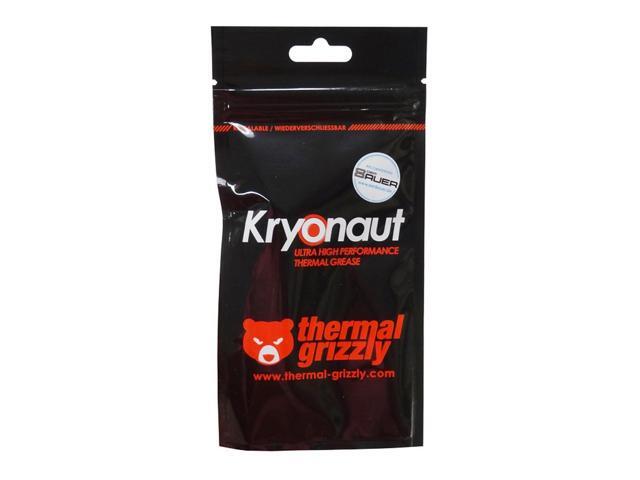
- Non-conductive
- Designed for sustained high temperatures
- Excellent longevity

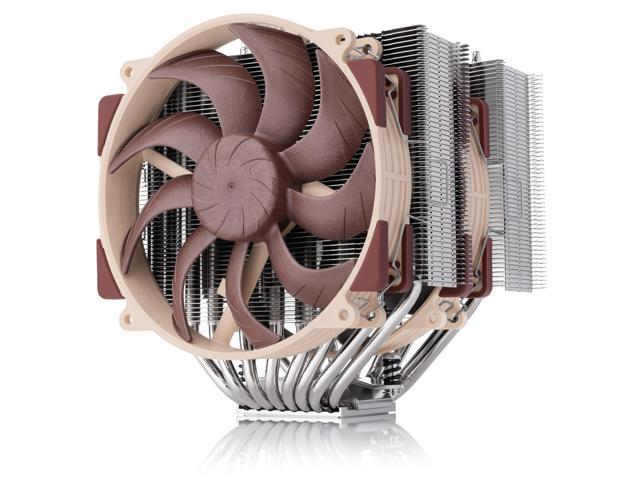
Noctua NH-D15 G2 (Desktop Users)
- Dual-tower air cooling
- Outperforms many liquid coolers
- Silent operation with zero leak risk
IETS GT500 (Laptop Gamers)
- Sealed pressure cooling design
- Forces airflow directly through vents
- Can reduce laptop temps by up to 20°C
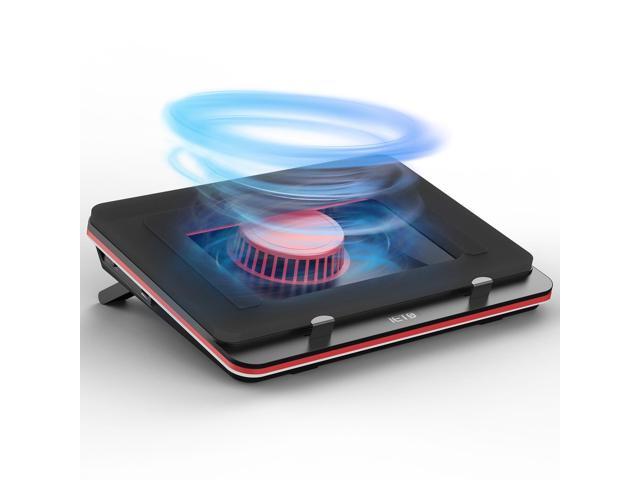
Generic cooling pads don’t create enough static pressure; sealed designs actually work.
4. Power Management (Unlock Ultimate Performance)
Windows 10 hides its most aggressive power profile. The Ultimate Performance plan prevents CPU core parking and frequency drops.
Enable Ultimate Performance
- Open Command Prompt (Admin)
- Paste:
powercfg -duplicatescheme e9a42b02-d5df-448d-aa00-03f14749eb61
- Open Power Options
- Select Ultimate Performance
- Set Minimum Processor State → 100%
This stabilizes CPU clocks and eliminates micro-stutter caused by power-saving transitions.
5. Storage & RAM Performance
If your OS is still running on a mechanical HDD in 2026, software tweaks won’t save you.
Page File Optimization
Windows uses your storage drive as virtual memory when RAM fills up. A slow drive equals freezing.
Fix:
- Move your Page File exclusively to your fastest NVMe SSD
- Avoid placing it on HDDs or secondary slow drives
This reduces hitching during asset loading and background memory swaps.
FAQ: Windows 10 Gaming Performance
Is Windows 10 still good for gaming in 2026?
Yes. Many systems perform more consistently than Windows 11 due to lower overhead and fewer virtualization-based security processes affecting older CPUs.
Why does my CPU overheat only while gaming?
Gaming creates combined CPU + GPU heat loads. Poor airflow allows GPU exhaust heat to soak the CPU cooler, rapidly increasing temperatures.
Should I disable Game Mode?
No. Keep it enabled. Modern Game Mode properly prioritizes game threads and suppresses background update activity.
Final Verdict
Windows 10 can still deliver elite gaming performance in 2026, but only if you take control of the operating system.
By disabling unnecessary background services, unlocking the Ultimate Performance power plan, optimizing storage behavior, and preventing thermal throttling, you eliminate the real causes of lag and freezing.
Apply these fixes and your system will feel smoother, cooler, and far more responsive, without reinstalling Windows.