
Quick Answer
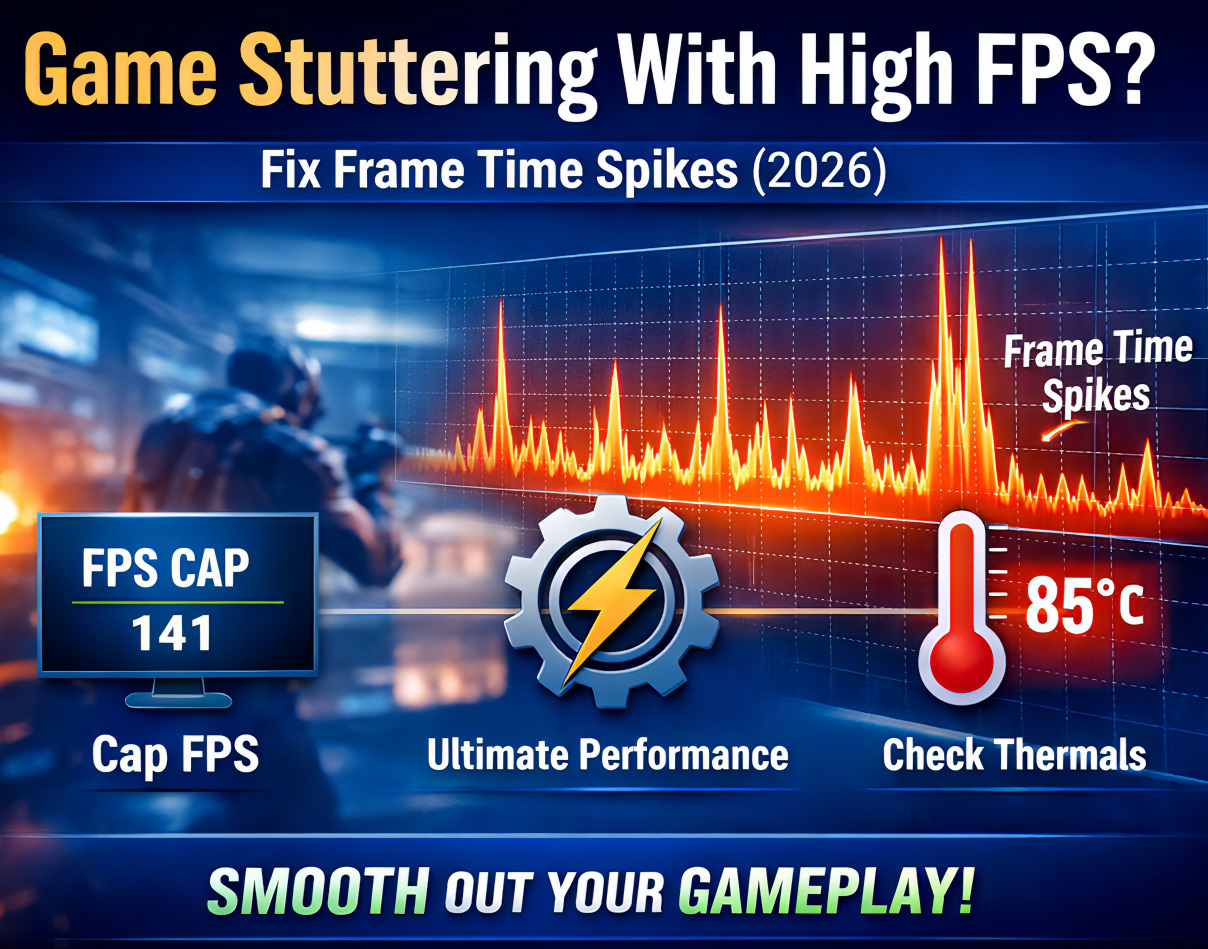
Micro stutter occurs when individual frames take longer to render than others, causing choppy gameplay despite high average FPS. The fastest fixes: (1) Cap FPS 2-3 below your monitor’s refresh rate using RTSS, (2) Enable Windows Ultimate Performance power plan, (3) Check for thermal throttling above 85°C. These resolve most frame time spikes immediately.
High FPS does not guarantee smooth gameplay. If your game runs at 120-240 FPS but feels uneven, choppy, or inconsistent, you’re dealing with frame time instability, not low performance.
Micro stutter happens when one frame takes significantly longer to render than the others. Even a 15-20 millisecond delay can make 144 FPS feel like 60 FPS.
📌 Before You Start:
This guide focuses on advanced diagnostics. If you want to try quick fixes first (10 minutes or less), start here: 5 Quick Stutter Fixes
If you recently updated to Windows 11 and started experiencing stutter, the issue may be OS-specific: Windows 11 Stutter Fix Guide
This guide provides a structured diagnostic process to identify and fix the exact cause of your frame time spikes.
- Quick Answer
- What Is Micro Stutter?
- Step 1: Measure Frame Time Properly
- Step 2: Identify the Stall Type
- Fix Path 1: GPU Saturation (Most Common)
- Fix Path 2: CPU Scheduling & Core Parking
- Fix Path 3: Thermal Throttling
- Fix Path 4: Shader Compilation Stutter
- Fix Path 4b: DirectStorage Compatibility (2026 Critical)
- Fix Path 5: Storage & Pagefile Stalls
- Fix Path 6: Disable Multi-Plane Overlay (MPO)
- When Hardware Is the Limit
- Frequently Asked Questions
- Conclusion
What Is Micro Stutter?
Micro stutter is inconsistent frame delivery that creates a choppy gaming experience despite high average FPS. It occurs when individual frames take significantly longer to render than surrounding frames.
Key indicators of micro stutter:
- Average FPS is high (120+ FPS) but gameplay feels unsmooth
- 1% low FPS drops significantly below average
- Frame time graph shows sharp vertical spikes
- Screen appears to “hitch” or “skip” during gameplay
Frame time consistency matters more than raw FPS numbers. A game locked at 60 FPS with consistent 16.7ms frame times feels smoother than 120 FPS with erratic frame times ranging from 8ms to 30ms.
Step 1: Measure Frame Time Properly
Before applying fixes, confirm that frame pacing is actually unstable. Guessing wastes time.
Required Tools
- MSI Afterburner (hardware monitoring)
- RTSS – RivaTuner Statistics Server (frame time overlay)
Enable These Metrics
- Frame time graph
- CPU usage per core
- GPU usage percentage
- CPU and GPU temperatures
- 1% low FPS
What to Look For
Healthy frame time graph: Nearly flat line with minimal variation
Micro stutter graph: Sharp vertical spikes indicating system stalls
If your average FPS is 120 but your 1% lows drop below 60, your system is experiencing burst delays that cause the stutter you’re feeling.
Important: Wait for Shader Cache Compilation
In 2026, many games (especially Unreal Engine 5 titles) will stutter for the first 5-10 minutes while they build the DirectX shader cache. Before diagnosing “permanent” stutter, stay in the main menu or a safe area for 5 minutes to allow initial compilation to complete. This is normal and will resolve itself.
Step 2: Identify the Stall Type
Your fix depends entirely on what’s causing the frame time spikes. Match your monitoring data to these patterns:
| Pattern | Symptom | Cause |
| Pattern A | GPU at 99-100% during spikes | GPU saturation |
| Pattern B | One CPU core pinned at 100% | Thread bottleneck or scheduler delay |
| Pattern C | Temperature spike with frame spike | Thermal throttling |
| Pattern D | Disk usage jumps to 100% | Storage or pagefile stall |
| Pattern E | Spikes on desktop or browser | Driver latency or MPO conflict |
Fix Path 1: GPU Saturation (Most Common)
When GPU usage hits 99-100%, the render queue fills and latency spikes occur. This is the most common cause of micro stutter.
The Solution
- Cap FPS 2-3 frames below your monitor’s refresh rate (e.g., 141 FPS for 144Hz)
- Use RTSS frame limiter for consistent results
- Enable G-Sync or FreeSync if available
Important: Uncapped FPS often causes worse smoothness, not better. The frame limiter prevents GPU saturation while maintaining high performance.
Fix Path 2: CPU Scheduling & Core Parking
Windows may park CPU cores or aggressively transition power states, causing delayed core wake-ups that create frame spikes.
Enable Ultimate Performance Power Plan
Open Command Prompt as Administrator and run:
powercfg -duplicatescheme e9a42b02-d5df-448d-aa00-03f14749eb61
Then:
- Go to Control Panel > Power Options
- Select Ultimate Performance
- Set Minimum Processor State to 100%
This prevents core parking and ensures consistent CPU performance during gaming.
Fix Path 3: Thermal Throttling
If you notice these symptoms, thermal throttling is your issue:
- CPU temperatures exceed 85-90°C
- Clock speeds drop during frame spikes
- Stutter appears after 10-15 minutes of gameplay
The Fix
Modern CPUs use aggressive boost algorithms. Even a brief downclock creates a visible frame spike.
The 2026 Thermal Reality: If you’re experiencing thermal throttling, the problem is always physical—no software setting can restore performance once you hit the thermal wall.
Immediate Actions
- Clean dust from heatsinks and fans: Compressed air every 6 months prevents gradual thermal degradation
- Replace thermal paste on 2+ year systems: Thermal paste degrades over time. High-quality thermal compounds maintain conductivity above 10 W/mK, preventing the millisecond downclocks that appear as frame spikes
- Verify case airflow: Ensure intake fans (front) match or exceed exhaust fans (rear/top) for positive pressure
When Thermal Solutions Are Required
If sustained temperatures remain above 85°C after cleaning and repasting:
- Desktop systems: High-end air coolers with 8+ heatpipes or 240mm+ AIO liquid coolers provide the thermal headroom needed for sustained boost clocks
- Laptop systems: External cooling pads with sealed memory foam designs force air through laptop heatsinks, often dropping temperatures by 15-20°C and immediately stabilizing frame times
Critical: Software tweaks will not fix thermal collapse. If cooling is the bottleneck, restoring thermal headroom prevents the downclock events causing the spikes.
💡 Quick Win: If capping FPS resolved your issue, you may not need the advanced fixes below. For other quick solutions, check our quick stutter fixes guide.
Fix Path 4: Shader Compilation Stutter
Unreal Engine 5 and other modern games frequently compile shaders during gameplay.
Symptoms
- Stutter when entering new areas
- Spikes when new visual effects appear
The Fix
- Install games on an NVMe SSD (not HDD or SATA SSD)
- Clear DirectX Shader Cache: Run Disk Cleanup > Select C: drive > Check ‘DirectX Shader Cache’
- Update GPU drivers using a clean installation method
Modern game engines stream high-resolution assets that overwhelm HDDs and older SATA drives.
Fix Path 4b: DirectStorage Compatibility (2026 Critical)
Modern AAA titles in 2026 increasingly rely on DirectStorage 1.2+ for asset streaming. If your hardware doesn’t meet DirectStorage requirements, you’ll experience traversal stutter when moving through open worlds.
DirectStorage Requirements
- Windows 11 (DirectStorage 1.1 works on Windows 10, but 1.2+ requires Windows 11)
- Gen 4 or Gen 5 NVMe SSD (Gen 3 causes bottlenecks in newer titles)
- GPU with DirectStorage support (RTX 4000/AMD 7000 series or newer)
Symptoms of DirectStorage Bottleneck
- Stutter when fast-traveling or entering new zones
- Texture pop-in accompanied by frame drops
- Disk queue depth spikes visible in Task Manager
The Fix
If you’re on Gen 3 NVMe or SATA SSD and playing 2026 AAA titles, upgrading to Gen 4 NVMe is the only solution. Software cannot compensate for insufficient I/O bandwidth when games expect DirectStorage-level throughput.
Fix Path 5: Storage & Pagefile Stalls
If disk usage spikes to 100% during stutter, you have a storage bottleneck.
Solutions
- Move the Windows pagefile to your fastest NVMe drive
- Avoid installing games on HDDs
- Ensure at least 15-20% free space on your SSD
Storage stalls create frame delivery interruptions that manifest as micro stutters.
Fix Path 6: Disable Multi-Plane Overlay (MPO)
Multi-Plane Overlay continues to cause stutter in certain Windows 10/11 builds and driver combinations.
Symptoms
- Desktop stutter
- Browser lag
- Random spikes outside of games
The Fix
Disable MPO using official vendor tools (NVIDIA Control Panel, AMD Software) or through registry adjustments. This frequently resolves unexplained desktop-level frame instability.
Advanced: Check DPC Latency
If disabling MPO doesn’t resolve desktop-level stutter, use LatencyMon to identify problematic drivers causing interrupt delays. High DPC (Deferred Procedure Call) latency from outdated network, audio, or USB drivers can create system-wide frame time spikes. LatencyMon will identify the specific driver file (.sys) responsible.
When Hardware Is the Limit
If after all fixes you still experience:
- CPU core remains pinned at 100%
- GPU remains saturated even with FPS cap
- RAM usage exceeds 95%
Your system may be below modern game engine requirements.
Minimum Baseline for Smooth 2026 Gaming
- 16GB RAM (32GB recommended for multitasking)
- Gen 4 NVMe SSD for game installation (Gen 3 causes DirectStorage bottlenecks)
- Adequate CPU cooling to maintain boost clocks (85°C maximum sustained)
- CPU capable of sustained boost clocks under load
- Windows 11 for full DirectStorage 1.2+ support
Frequently Asked Questions
What causes micro stutter in games?
Micro stutter is caused by inconsistent frame delivery. Common triggers include GPU saturation, CPU scheduling delays, thermal throttling, shader compilation stalls, or storage bottlenecks.
Why do I get stutter even with high FPS?
High FPS measures average output. Stutter happens when individual frames take too long to render. Frame time consistency matters more than raw FPS numbers.
Does capping FPS reduce stutter?
Yes. Capping FPS slightly below your monitor’s refresh rate prevents GPU saturation and stabilizes frame pacing, resulting in smoother gameplay.
Can overheating cause frame time spikes?
Yes. When a CPU or GPU hits its thermal limit, it downclocks to protect itself. Even brief downclock events create visible frame time spikes and stuttering.
Is micro stutter a Windows problem?
Not usually. Micro stutter is typically caused by hardware limits, power-state transitions, storage delays, or driver conflicts rather than Windows itself.
How do I know if my micro stutter is fixed?
Monitor your frame time graph in RTSS. A fixed system shows a flat, consistent line with minimal spikes. Your 1% low FPS should stay close to your average FPS.
Should I use V-Sync or G-Sync?
G-Sync or FreeSync are preferred. V-Sync adds input lag. G-Sync/FreeSync synchronize your monitor’s refresh rate with your GPU’s output without the latency penalty.
What is DirectStorage and do I need it for gaming in 2026?
DirectStorage 1.2+ allows games to stream assets directly to the GPU, bypassing CPU bottlenecks. Modern 2026 AAA titles require Gen 4 or Gen 5 NVMe SSDs for smooth traversal. Gen 3 NVMe or SATA SSDs cause stuttering in DirectStorage-enabled games.
Related Guides
Depending on your specific issue, these guides may also help:
- 5 Quick Stutter Fixes – Fast solutions that work in under 10 minutes
- Windows 11 Stutter Fix – Fixes for VBS, MPO, and GameInput issues on Windows 11 25H2
Conclusion
Micro stutter is not an FPS problem, it’s a frame time consistency problem. The root cause is always inconsistent frame delivery from GPU saturation, CPU scheduling delays, thermal downclock events, or storage I/O stalls.
Fix the failing layer using the diagnostic workflow above, and smoothness returns immediately. Most cases are resolved by capping FPS properly, enabling Ultimate Performance mode, and ensuring adequate cooling.