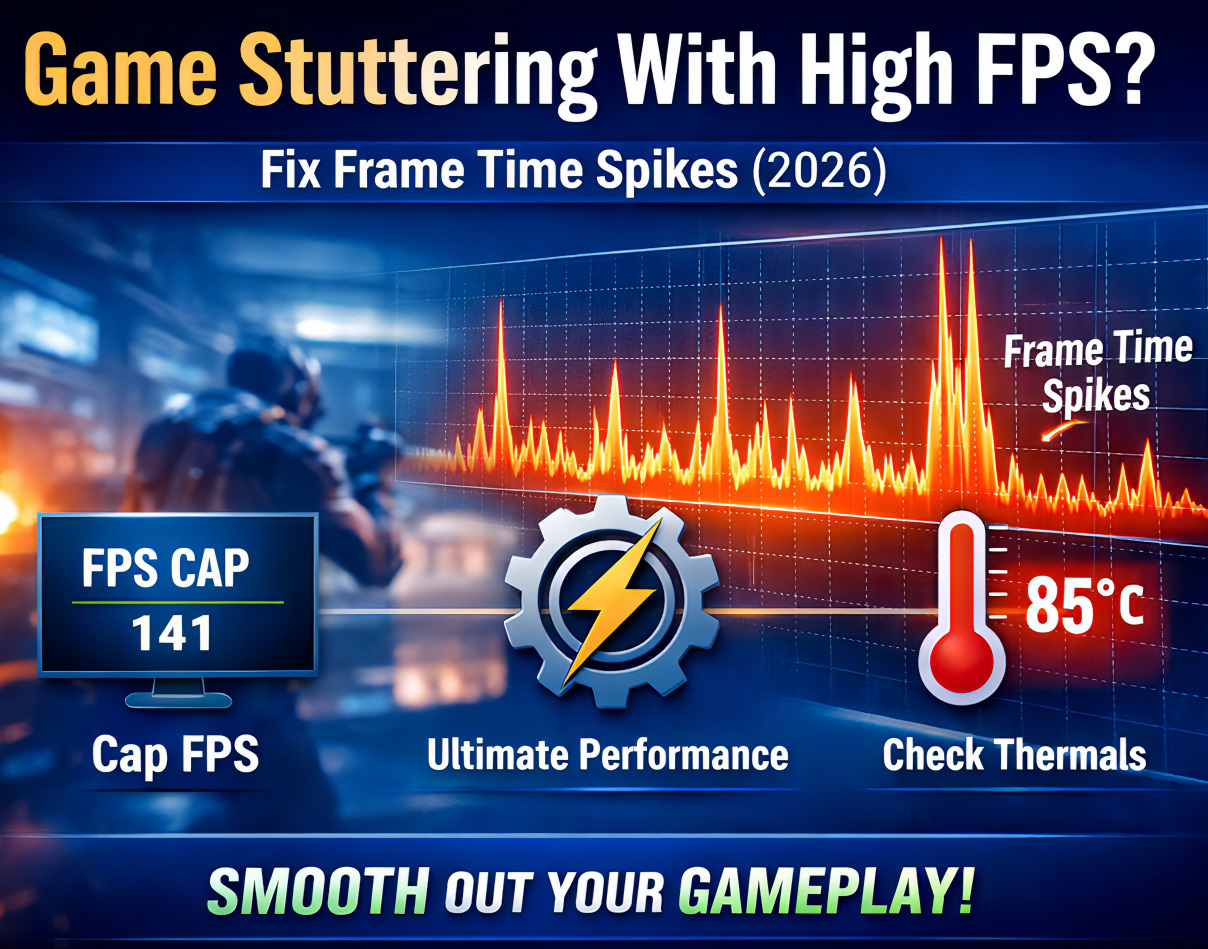
Quick Answer: Game stuttering at high FPS usually means inconsistent frame times, not low average FPS. In most cases, the fastest fixes are: (1) cap FPS 2–3 below your monitor’s refresh rate with RTSS, (2) set Windows to Best Performance and keep Game Mode enabled, and (3) check temperatures and close overlays or background apps causing spikes.
Note: This guide focuses on the 3 fastest fixes for high-FPS stuttering. If you want to understand what causes frametime spikes before fixing them, read What Are Frametime Spikes? (Complete Guide) first.
If your game says 120, 144, or even 240 FPS but still feels choppy, the problem usually is not your average frame rate. It is frame pacing. That means some frames are taking much longer to render than others, which creates visible hitching, skipping, or micro stuttering even when the FPS counter looks good.
The good news is that you usually do not need a full Windows reinstall, BIOS tweak marathon, or expensive upgrade to fix it. Start with the three steps below. They are fast, low-risk, and they solve a huge percentage of high-FPS stutter complaints.
Why High FPS Can Still Feel Bad
High FPS does not automatically mean smooth gameplay. A game can average 144 FPS and still feel worse than a locked 90 FPS experience if frame delivery is unstable. That is why stutter almost always feels like a timing problem, not just a horsepower problem.
Common causes include:
- GPU saturation
- CPU thread bottlenecks
- Thermal throttling
- Windows power behavior
- Overlays and background apps
- Shader compilation or asset streaming
This guide focuses on the highest-impact fixes first. If these three steps do not solve it, use the related guides linked near the end.
Step 1: Cap FPS 2–3 Below Your Monitor Refresh Rate
Time: 5 minutes
Impact: Very high
If your monitor is 144 Hz, start by capping your game to 141 FPS. If it is 165 Hz, try 162 FPS. This works because uncapped frame rates often keep the GPU pinned near full usage, which makes frame delivery less consistent. A small cap creates headroom and usually smooths out frame pacing immediately.
How to Cap FPS With RTSS
- Install MSI Afterburner and RivaTuner Statistics Server (RTSS).
- Open RTSS.
- Find the Framerate limit field.
- Enter your cap:
- 144 Hz monitor → 141 FPS
- 165 Hz monitor → 162 FPS
- 240 Hz monitor → 237 FPS
- Launch the game and test the difference.
What to Expect
- Gameplay feels smoother even if peak FPS is slightly lower
- Frame time spikes become less obvious
- GPU usage often drops from 99–100% to a more stable range
- 1% lows usually move closer to your average FPS
If this step helps a lot but does not fully solve it, keep the cap in place and move to Step 2.
Need a deeper explanation of why this works? Read How to Tell If You Have a CPU or GPU Bottleneck.
Step 2: Set Windows to Best Performance and Keep Game Mode On
Time: 3 minutes
Impact: High
Windows can sometimes behave too conservatively for gaming, especially on systems using balanced power behavior. If power usage is not your main concern, switch Windows to Best Performance. On modern systems, this can help the CPU respond more aggressively when the game suddenly needs more performance.
How to Do It
- Open Settings.
- Go to System > Power & battery.
- Under Power mode, select Best performance.
- Then go to Settings > Gaming > Game Mode.
- Make sure Game Mode is turned On.
If you mostly play in borderless or windowed mode, it is also worth checking Optimizations for windowed games under Settings > System > Display > Graphics > Default graphics settings. That can improve latency and variable refresh behavior for supported games.
What to Expect
- Fewer random stutters during heavy scenes
- Better responsiveness when the game suddenly loads CPU-heavy effects
- Less inconsistent performance caused by Windows background behavior
If you are on Windows 11 and the stutter feels system-wide, read Fix Windows 11 Stuttering in 20 Minutes next.
Step 3: Check Temperatures and Close Overlays or Background Apps
Time: 7 minutes
Impact: Very high
If your game starts smoothly and then gets worse after 10 to 20 minutes, heat is one of the first things to check. A CPU or GPU that gets too hot can briefly reduce clock speed to protect itself, and even short downclocks can show up as stuttering.
At the same time, too many background tools can interfere with frame delivery. Browser tabs, launchers, RGB software, capture tools, overlays, chat apps, and update services all compete for system resources in different ways.
What to Check
- CPU temperature: watch for sustained temps above the mid-80s Celsius
- GPU temperature: high temps combined with clock drops can create spikes
- Overlays: disable extras from Discord, GeForce Experience, Steam, Xbox Game Bar, or motherboard utilities
- Background apps: close browser tabs, launchers you are not using, and any unnecessary monitoring software
Fast Test
- Open MSI Afterburner monitoring.
- Play for 10 minutes.
- Watch CPU temp, GPU temp, GPU usage, and clock behavior.
- Then close non-essential overlays and apps and test the same area again.
What to Expect
- Stutter that gets worse over time often improves once temps are controlled
- Frame times look steadier after removing overlay clutter
- Games feel more consistent during long sessions, not just the first few minutes
If your system still runs hot after cleaning and airflow checks, the issue may be cooling rather than settings. If your FPS is also lower than it should be, see Low FPS on High-End PC? Fix It in 15 Minutes.
When These 3 Steps Do Not Work
If the stutter is still there after all three steps, the issue is probably more specific than a quick fix can solve. At that point, use the guide that matches your symptoms:
- Fix Windows 11 Stuttering in 20 Minutes: best for system-wide stutter, poor 1% lows, or Windows 11-specific issues
- How to Tell If You Have a CPU or GPU Bottleneck: best if you need to confirm whether the CPU or GPU is the limiter
- Low FPS on High-End PC? Fix It in 15 Minutes: best if performance is low overall, not just uneven
- 7 Critical PC Settings to Check Before Buying New Parts: best if you think Windows or driver settings are holding back otherwise good hardware
- Windows 10 Gaming Optimization: best for older systems still running Windows 10
Frequently Asked Questions
Why do games stutter even at high FPS?
Because high FPS only tells you the average number of frames rendered. It does not tell you whether those frames are arriving evenly. Stutter happens when one or more frames take too long to render, which creates visible hitches even though the FPS counter still looks high.
Does capping FPS reduce stuttering?
Yes, in many cases it does. Capping FPS slightly below your monitor refresh rate creates GPU headroom and improves frame pacing. On a 144 Hz display, 141 FPS is a common starting point. This is one of the fastest and most reliable fixes for high-FPS stutter.
Should I disable Game Mode?
Usually no. Start with Game Mode enabled, especially on Windows 11. It is designed to keep more system resources focused on the active game. Only test it off if you have a specific reason to suspect it is causing problems on your particular system.
Can overheating cause micro stuttering?
Yes. If your CPU or GPU gets hot enough to reduce clock speed, even brief downclocks can show up as frame time spikes. This is why some PCs feel smooth at launch but become choppy later in a long gaming session.
Is this a Windows 11 problem or a hardware problem?
It can be either. Some stutter issues come from Windows settings, update-related conflicts, or overlays. Others come from GPU saturation, CPU bottlenecks, heat, or storage behavior. That is why the fastest approach is to test the simple fixes first before blaming the whole system.
Do I need an NVMe SSD to fix stuttering?
Not always. Some modern games benefit more from faster storage, but not every stutter problem is caused by storage. Many cases are fixed much earlier by capping FPS, improving cooling, or cleaning up background load.
Final Takeaway
If your game stutters at 144 FPS, stop focusing only on the average number. In most cases, the fix is faster than people think. Cap FPS slightly below refresh, set Windows to Best Performance, keep Game Mode on, and rule out heat or overlay interference. Those three steps solve a huge share of real-world stutter complaints without forcing you into a full rebuild or reinstall.
If they do not, use the linked guides above to narrow the problem down properly. Smooth gameplay is not just about higher FPS. It is about cleaner frame delivery.